
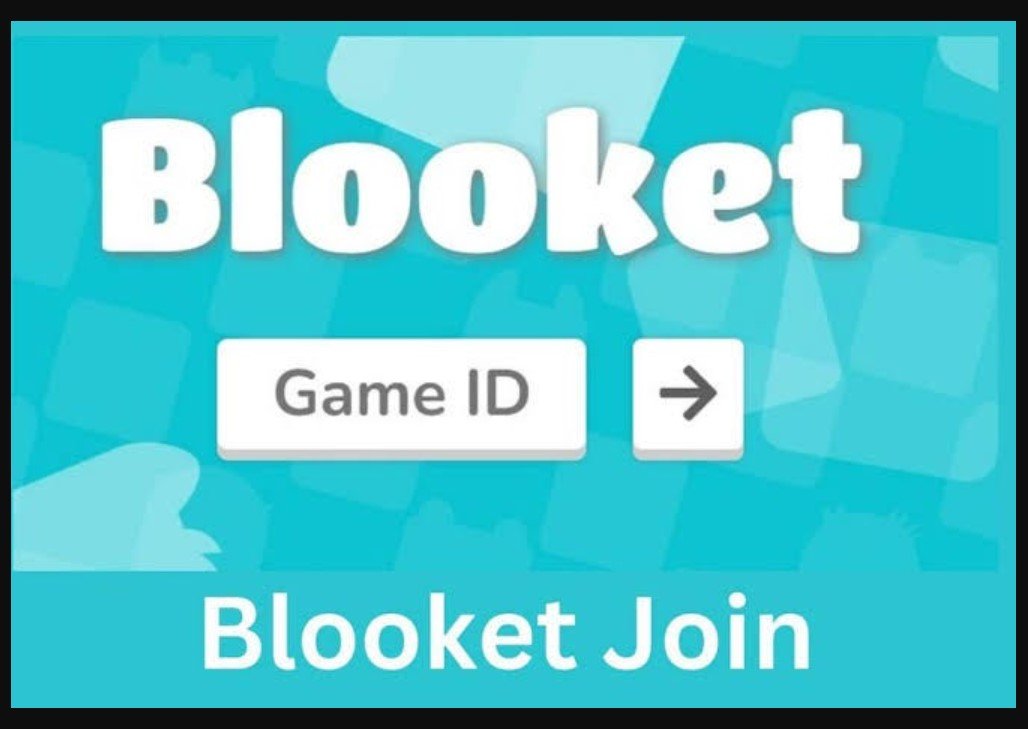
Blooket is a learning game platform where students join live review games, answer questions, and compete in different game modes. If you want to join blooket game, you normally need a Game ID, QR code, or join link from your teacher or host. Without one of these, you cannot enter a live session because the game has to be created by someone first.
The good part is that joining is simple once you have the code. You do not need to create a complicated setup, choose the quiz, or manage the game settings. The host controls the session, while students only enter the code, add a nickname, choose a Blook when required, and wait for the game to begin. Blooket’s official help page confirms that students can join through a game code, QR code, or shared join link.
What Does It Mean to Join Blooket Game?
To join a Blooket game means entering a live game session that has already been created by a teacher, tutor, parent, or host. The host selects the question set and game mode, then shares the joining method with students. Once students enter the session, they wait in the lobby until the host starts the game.
This is different from hosting a game. Hosting means choosing the content, picking the game mode, setting rules, and starting the session. Joining means you are only participating as a player. Blooket’s teacher guide says the host starts the game after students have joined, which means students cannot fully begin a live classroom game by themselves.
How to Join a Blooket Game Step by Step
The easiest way to join is through the official Blooket play page. First, ask your teacher or host for the Game ID. Then open the play page, type the code carefully, and continue. Blooket may ask you to enter a nickname or choose a randomly generated name before you appear in the game lobby.
Here is a simple joining process:
| Step | What to Do |
|---|---|
| 1 | Get the Game ID, QR code, or join link from your host |
| 2 | Open the official Blooket play page |
| 3 | Enter the game code or use the QR/link option |
| 4 | Add your nickname or choose a random name |
| 5 | Wait for the host to start the game |
Students can also scan a QR code with their device camera or click a join link shared by the teacher. This is useful for online classes because the host can send the link in a chat, assignment page, or learning platform. Blooket’s official join guide explains all three methods: game code, QR code, and join link.
Do You Need a Blooket Account to Play?
No, students do not need a Blooket account to join a live hosted game. Blooket’s official FAQ says only the teacher needs an account to host, while students can join with a Game ID, QR code, or link without logging in. This makes Blooket easy for classroom use because students can join quickly without creating accounts first.
Still, having an account can be useful for students who use Blooket often. According to the official Blooket student guide, students can join live games by entering the game code, scanning a QR code, or clicking the link shared by their teacher. An account can also help students track stats, unlock Blooks, and use their own profile during games.
Blooket also says accounts are not required for students to participate in live games or complete homework. However, students who want to create an account must meet Blooket’s age requirements, including being above 13 years old in the U.S. or at least 16 outside the U.S.
Why Your Blooket Game Code May Not Work
Sometimes students try to join blooket game but the code does not work. This can happen for simple reasons. The code may be typed incorrectly, the teacher may not have started the session, the game may have ended, or late joining may be disabled by the host. If you are joining from a classroom or school network, a firewall may also block part of the platform.
Blooket’s troubleshooting page says that if users cannot join or host a game, they may need to make sure firebaseio.com is unblocked on the device or network because Blooket uses it for part of its backend. It also notes that usernames are case sensitive when logging in, so students using accounts should type their usernames exactly as registered.
| Problem | Possible Reason | What to Do |
|---|---|---|
| Code does not work | Wrong code or expired game | Ask the host for a fresh code |
| Page does not load | Network or firewall issue | Try another network or ask school IT |
| Can’t enter nickname | Game settings issue | Ask the host to check settings |
| Game already started | Late joining may be off | Ask the host if joining is still allowed |
| Login problem | Case-sensitive username | Type the username exactly |
If images, Blooks, or live game features are not loading correctly, Blooket also provides a debug page to test whether important services are being blocked. This is helpful for schools where filters sometimes block classroom tools by mistake.
Conclusion
Joining a Blooket game in 2026 is simple when you have the right Game ID, QR code, or join link. Students usually only need to enter the code, add a nickname, and wait for the host to start the session. A Blooket account is not required for live games, which makes the platform easy to use in classrooms.
The main thing to remember is that students cannot join without an active game from a teacher or host. If the code does not work, check the code, ask whether the game is still open, and make sure the school network is not blocking Blooket services.
FAQs
How do I join a Blooket game?
You can join by entering the Game ID on the Blooket play page, scanning a QR code, or clicking a join link shared by your teacher.
Do I need an account to join Blooket?
No. Students can join live Blooket games without an account. Only the host needs an account to create the game.
Why is my Blooket code not working?
The code may be wrong, expired, or the game may have ended. Your teacher may also have disabled late joining.
Can I join Blooket after the game starts?
It depends on the host settings. Some games allow late joining, while others may block new players after the session begins.
