
What Is Blooket and Why Does It Matter?
If you’ve spent any time in a modern classroom — or raised a child who has — you’ve probably heard the word “Blooket” come up more than once. Blooket is a game-based learning platform that transforms traditional quizzes into competitive, entertaining experiences. Students answer curriculum-aligned questions while simultaneously playing mini-games, earning coins, and unlocking virtual collectibles called “Blooks.”
Since its launch, Blooket has grown into one of the most widely used EdTech tools in K–12 education across the United States and beyond. Teachers use it to review material before tests, introduce new concepts, and keep students genuinely engaged. Students love it because it doesn’t feel like studying.
But before anyone can host a game or join one, they need to know how the Blooket login process works. Whether you’re a first-time teacher setting up your account or a student trying to get into class before the timer runs out, this guide covers everything you need.
Understanding the Two Types of Blooket Accounts
One of the first things to clarify is that Blooket operates differently depending on who is logging in.
Teacher/Host Accounts: Educators and game hosts need a registered account with a username and password (or a linked Google account). This gives them access to the dashboard, question set creation tools, game history reports, and the ability to host live or solo games.
Student Accounts: Students can join a game as a guest — using only a Game ID provided by the teacher — without creating an account at all. However, students who create free accounts gain the benefit of saving Blooks, tracking their progress, and accessing homework-style assignments called “Solo Modes.”
Understanding which type of login you need is the starting point for a smooth experience.
How to Log In to Blooket: Step-by-Step
For Teachers and Registered Users
Step 1: Go to the Official Blooket Website
Open your browser and navigate to blooket.com. Always access Blooket through its official URL to protect your account credentials and avoid phishing sites.
Step 2: Click “Login” in the Top Navigation
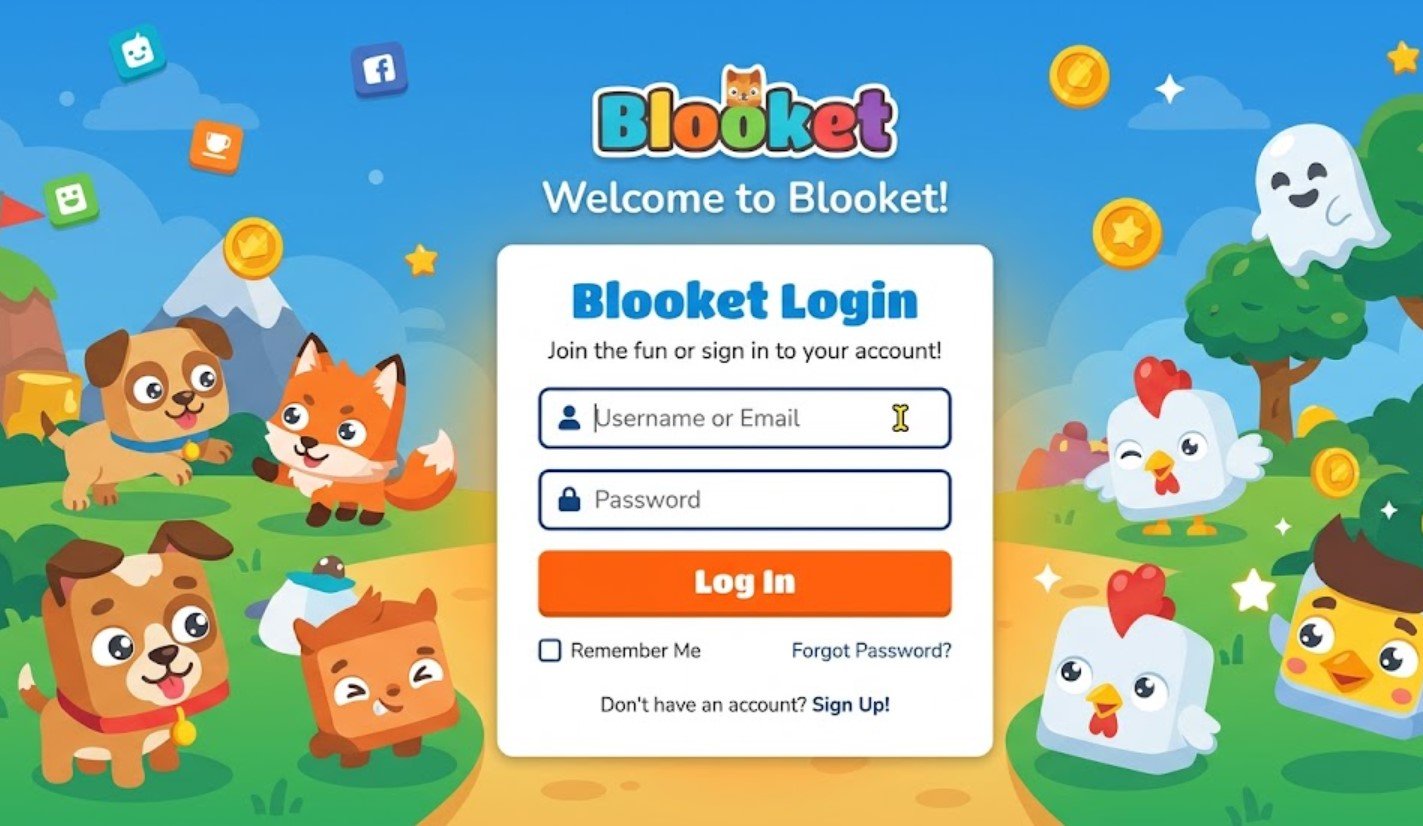
On the homepage, you’ll see a “Login” button in the upper-right corner. Click it to be taken to the login page.
Step 3: Choose Your Login Method
Blooket offers two login options:
- Google Sign-In: If you registered with a Google account, click the “Sign in with Google” button. You’ll be redirected to Google’s authentication page. Select the appropriate Google account, and you’ll be logged in automatically.
- Email and Password: If you registered with an email address, enter your credentials in the fields provided and click “Login.”
Step 4: Access Your Dashboard
Once authenticated, you’ll land on your Blooket dashboard, where you can create question sets, host games, view reports, and manage your account settings.
For Students Joining a Game
Students typically don’t need to log in at all to play a live class game. Here’s how the guest process works:
Step 1: Go to blooket.com/play
When a teacher hosts a live game, they share a Game ID — a short numeric code. Students navigate to blooket.com/play (or the teacher may provide a direct link).
Step 2: Enter the Game ID
Type in the Game ID provided by the teacher and click “Join.”
Step 3: Enter a Name
Students enter their name (or username if they have an account) to appear on the leaderboard.
Step 4: Play
That’s it. No password, no registration required for live games.
If students want to access Solo Modes or save their progress, they can create a free account by clicking “Sign Up” and registering with an email or Google account.
Common Blooket Login Problems and How to Fix Them
Even a simple login process can run into technical snags. Here are the most frequently encountered issues and their solutions:
1. “Incorrect Password” Error
This is the most common login issue. If you’re certain you’re using the right email, try resetting your password:
- Click “Forgot Password” on the login page.
- Enter the email address associated with your account.
- Check your inbox for a reset link (also check your spam/junk folder).
- Follow the link to create a new password.
If you originally signed up with Google, you may not have a separate Blooket password — use the “Sign in with Google” button instead.
2. Google Login Isn’t Working
If Google Sign-In fails, try these steps:
- Make sure you’re logged into the correct Google account in your browser.
- Clear your browser’s cache and cookies, then try again.
- Try a different browser (Chrome tends to work best with Google Sign-In integrations).
- Disable any browser extensions that might interfere with authentication, such as ad blockers or privacy tools.
3. Account Not Found
If Blooket says it can’t find your account, double-check the email address you’re using. It’s common for users to have multiple email addresses and forget which one they used to register. Try variations, and if all else fail, create a new account — Blooket’s free tier costs nothing to sign up for.
4. Students Can’t Join a Game
If a student enters a Game ID and receives an error, the most likely causes are:
- The Game ID was entered incorrectly (numbers are easy to misread).
- The game hasn’t started yet — the host needs to launch it first.
- The game has already ended.
- The host accidentally closed the game lobby.
Ask the teacher to double-check the Game ID and confirm the game is active.
5. Page Won’t Load or Login Is Slow
Blooket runs on web servers that can occasionally experience high traffic, especially during peak school hours. If the page is slow to load:
- Refresh the page.
- Check Blooket’s social media channels for any reported outages.
- Try on a different network if your school’s Wi-Fi is filtering certain content.
Blooket Login on Different Devices
Blooket is a browser-based platform, which means it works on virtually any device with an internet connection — no app download required. Here’s what to know about logging in across different devices:
Desktop and Laptop (Windows/Mac): The full Blooket experience is best experienced on a desktop browser. Chrome and Firefox both perform well.
Chromebook: Blooket is exceptionally popular in schools that use Chromebooks, and it runs seamlessly. Log in via Chrome browser using your Google account for a frictionless experience.
iPad and iPhone: Navigate to blooket.com in Safari or Chrome on iOS. The site is mobile-responsive, though some game modes are more comfortable to play on a larger screen.
Android: Same as iOS — use Chrome or your preferred browser to access Blooket directly.
There is no dedicated Blooket mobile app available on the App Store or Google Play at the time of writing. All access is through the web browser.
Blooket Account Tiers: Free vs. Plus
Understanding what your account gives you access to is important, especially for teachers evaluating Blooket for classroom use.
Free Account (All Users):
- Unlimited game hosting
- Access to thousands of community-created question sets
- Basic game modes
- Student progress data (limited)
Blooket Plus (Paid Subscription for Teachers):
- Advanced game reports and analytics
- Early access to new game modes
- Increased question set limits
- Priority support
For most classrooms, the free tier is sufficient. Blooket Plus is best suited for teachers who want deeper insight into student performance data or who use the platform daily across multiple classes.
Keeping Your Blooket Account Secure
Account security matters, even on an educational platform. Here are a few best practices:
Use a strong, unique password. If you registered with an email address, choose a password you don’t use elsewhere. A password manager can help you keep track.
Enable Google Sign-In if possible. Google’s authentication infrastructure adds an additional layer of security compared to a basic email/password setup.
Don’t share your login credentials. Teachers especially should never share their account login, as this provides access to student data and game history.
Log out on shared devices. If you’re using a school computer or shared device, always log out when you’re done.
Final Thoughts: Making the Most of Blooket
The Blooket login process is intentionally simple — because the platform is built for busy teachers and fast-moving classrooms. Whether you’re a seasoned educator who’s been using Blooket for years or a new user logging in for the first time, the steps are straightforward and the troubleshooting options are clear.
The real value of Blooket isn’t in the login page — it’s in what happens after. Once you’re in, you have access to one of the most engaging, research-backed approaches to student review and formative assessment available today. Teachers who use game-based learning tools consistently report higher student participation and improved retention of key concepts.
Log in, explore the question set library, host your first game, and watch what happens when students stop dreading review sessions and start asking, “Can we play Blooket today?
